Securing sensitive data in the cloud is more important than ever, especially as organizations adopt modern security frameworks like Secure Service Edge (SSE). One powerful way to strengthen your security posture is by using Customer Managed Keys (CMK), which give you full control over your encryption keys and help meet strict compliance requirements.
In this post, I’ll walk you through the steps to create the necessary resources and build a policy that enforces SSE with CMK. By the end, you’ll know how to set up, configure, and apply this policy to protect your cloud environment with confidence.
You’ll need an Azure Key Vault configured with:
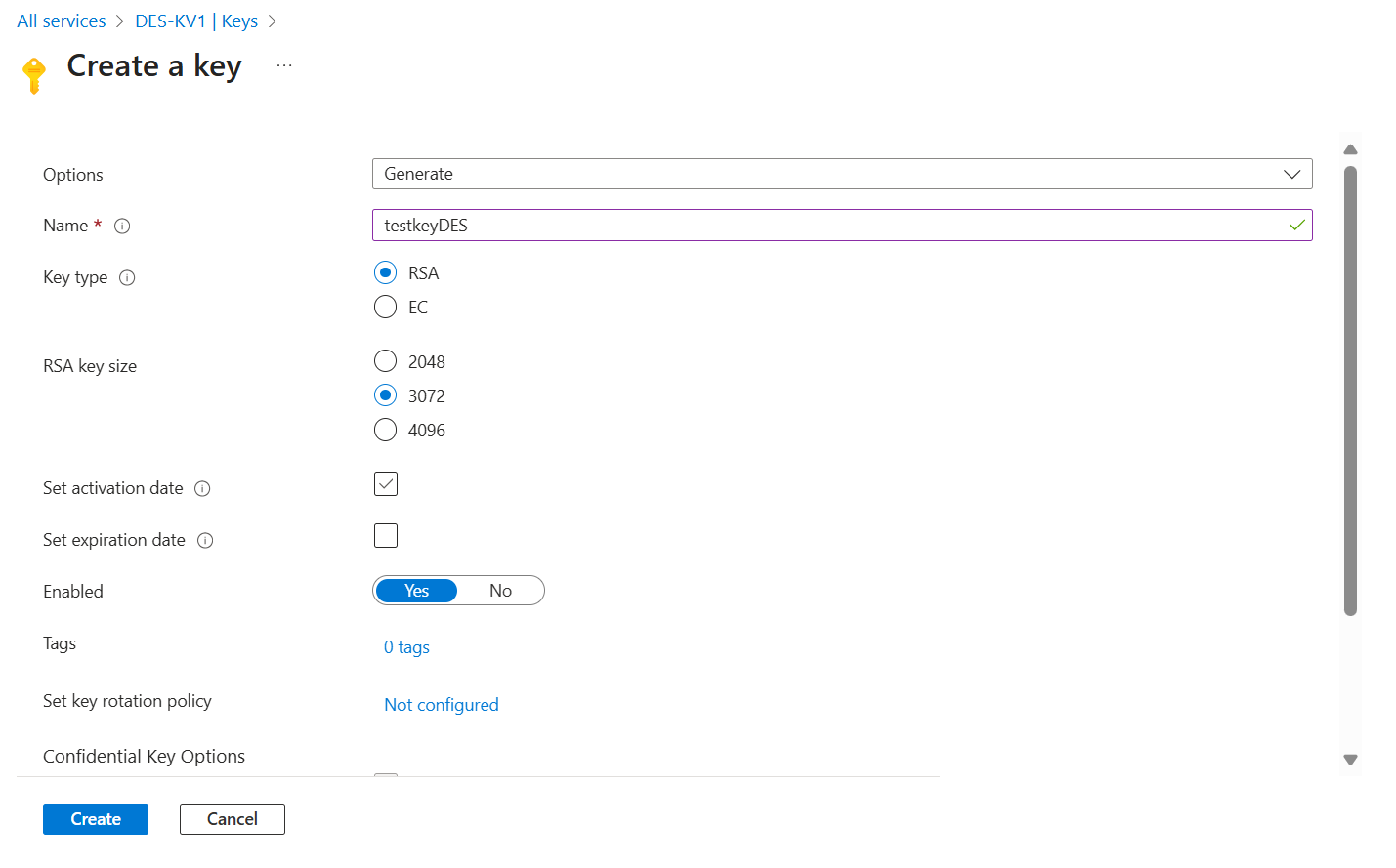
- An RSA key of 3072 bits (supported size).
- Soft delete and purge protection turned on.
Creating the Key Vault
If you already have a Key Vault and plan to use it, you can skip this section.
- Go to the Key Vault creation page, select your subscription.
⚠️ Make sure the Key Vault is in the same region as the DES. Enable soft delete and purge protection during setup.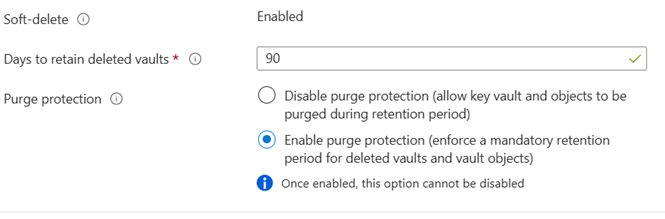
- In the Access Configuration section, select Azure role-based access control (recommended).
You’ll assign roles later. Also, enable the necessary options under Resource Access.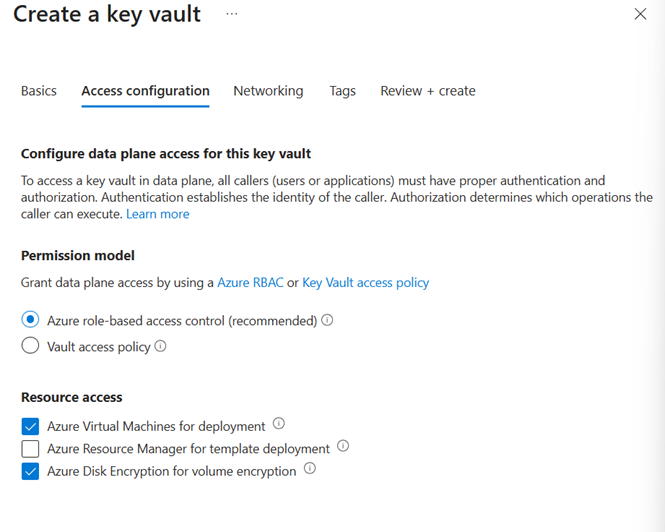
- For Networking, allow public access temporarily so you can create the key. This will be restricted later.
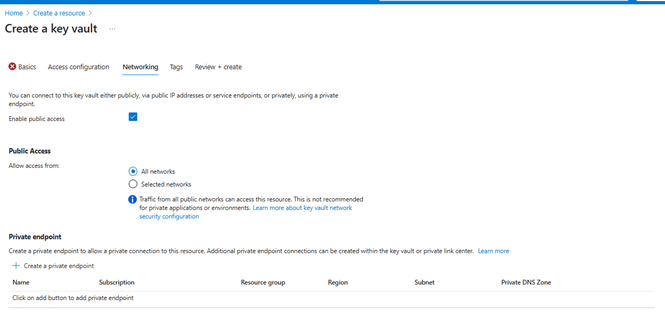
Assigning Roles
Once the Key Vault is created:
- Go to Access Control (IAM) in the Key Vault.
- Add a new role assignment (Key Vault Administrator) granting yourself access. This is needed to complete the policy and DES setup.
Your role assignment should resemble this: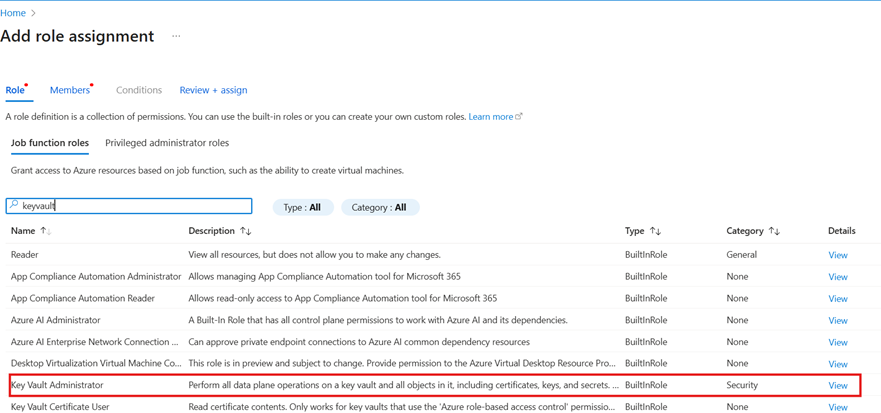
Creating the Encryption Key
Now, let’s create the key that will be used for SSE with CMK. This key will be linked to the DES and used to encrypt your disks.
- Open the Key Vault, go to Keys, and click Generate.
- Choose a name that clearly identifies the key in relation to the Key Vault and DES.
- Use the following configuration options:
Setting Up the Disk Encryption Set (DES)
The DES must reference the key in your Key Vault and be located in the same region as your VMs and disks.
- Search for Disk Encryption Set, then:
- Name the DES
- Select your subscription and resource group
- Choose the Key Vault, key, and key version
- Ensure the region matches the Key Vault
- You’ll configure the user-assigned identity later
Note: At this step it is also possible to create the Key Vault in case you did not create it earlier. The Key Vault and the DES must be in the same region.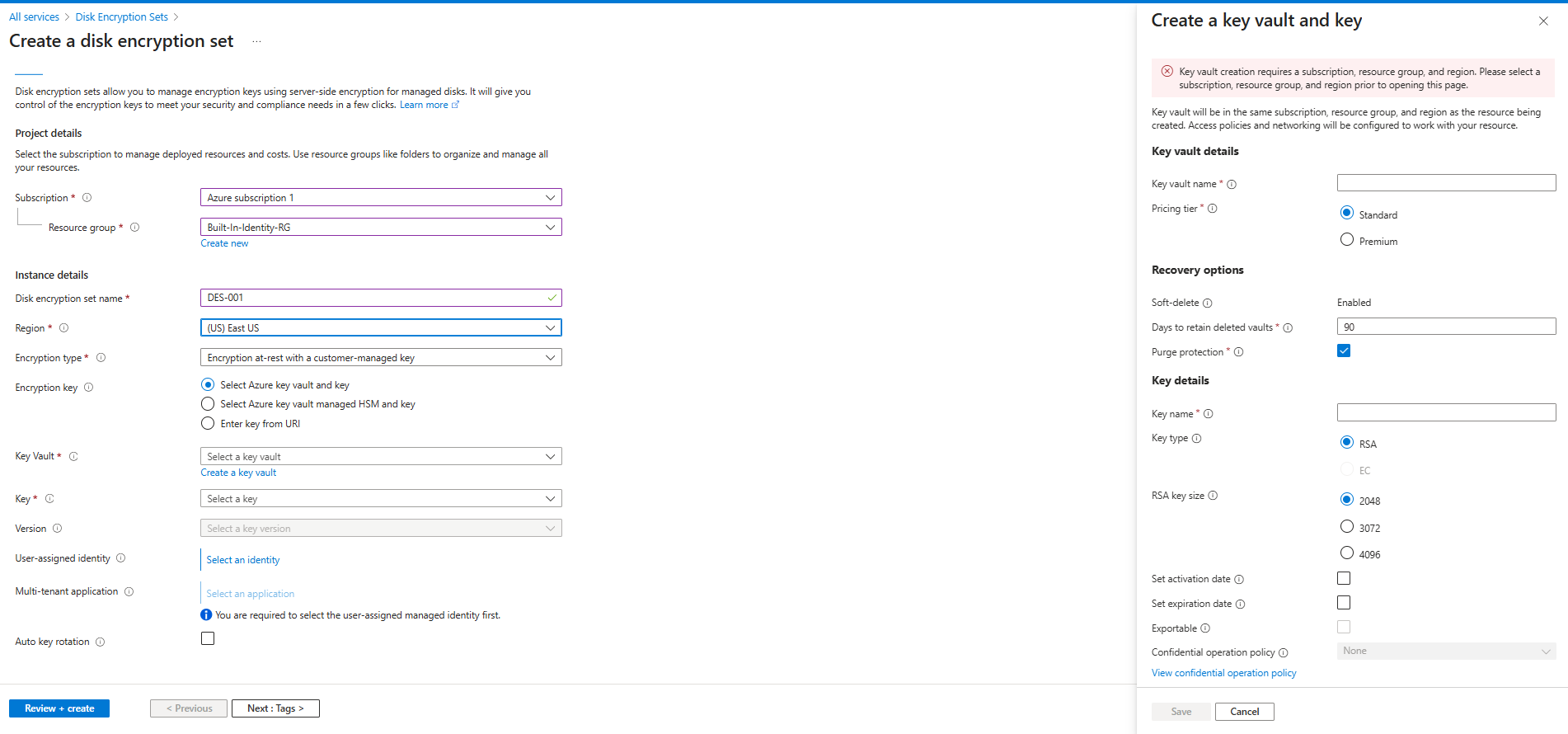
Updating Key Vault Network Settings
Now that the Key Vault is set up, restrict public access:
- Go back to the Key Vault’s Networking settings.
- Disable public access, but allow trusted Microsoft services to bypass the firewall.
Creating the Policy
Step 1: Define a New Policy
Here’s the JSON definition for the custom policy:
{ "properties": { "displayName": "Deny VMs not using Disk Encryption Set with CMK", "policyType": "Custom", "mode": "Indexed", "description": "Denies creation of virtual machines whose OS or data disks are not encrypted using a Disk Encryption Set with a customer-managed key.", "metadata": { "version": "1.0.0", "category": "Security" }, "parameters": {}, "policyRule": { "if": { "allOf": [ { "field": "type", "equals": "Microsoft.Compute/virtualMachines" }, { "anyOf": [ { "field": "Microsoft.Compute/virtualMachines/storageProfile.osDisk.managedDisk.diskEncryptionSet.id", "exists": "false" }, { "count": { "field": "Microsoft.Compute/virtualMachines/storageProfile.dataDisks[*]", "where": { "field": "Microsoft.Compute/virtualMachines/storageProfile.dataDisks[*].managedDisk.diskEncryptionSet.id", "exists": "false" } }, "greater": 0 } ] } ] }, "then": { "effect": "deny" } } }}
Step 2: Assigning the Policy
Apply the policy to your subscription or resource group.
At this step you can customize the non-compliance message, for example:
“Disks mu st be encrypted. Use SSE with a Customer Managed Key by selelcting a Disk Encryption Set under Key Management.”
Final Outcome and ValidationOnce completed, your environment will enforce encryption using DES with CMK, ensuring compliance and enhanced data protection.
Best practise would be to create a VM and test the policy and then create the VM and use the newly created Disk Encryption Set.


Leave a Reply