
If you’ve ever come across the Provisioning Settings Catalog using inTune and decided to change the name of a printer that was already provisioned on an user’s machine you might stumble into some issues.
If this happens, removing a printer manually and then re-adding it should do the trick, however, things can get complicated if you have many users where you want to implement the changes.
At first, you might want to avoid using a script and use the PrinterProvisioning CSP from the link below, however, this doesn’t seem to be an option that is currently working .
https://learn.microsoft.com/en-us/windows/client-management/mdm/printerprovisioning-csp
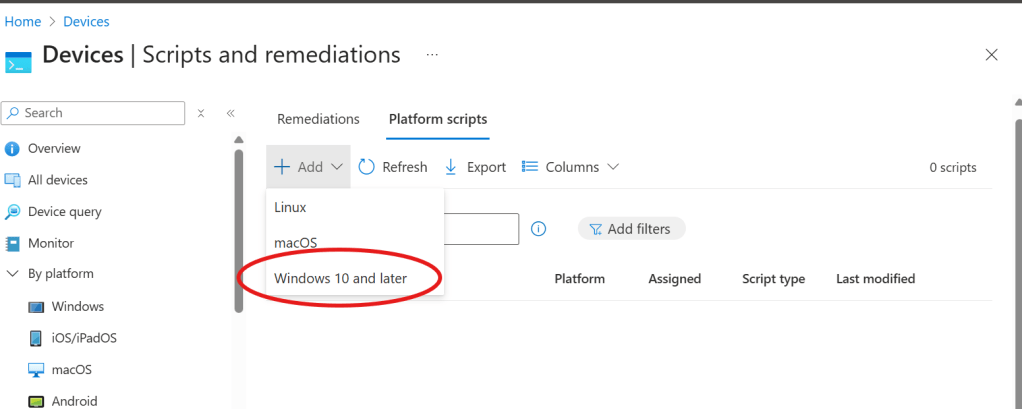
What seems to be working though it’s the use of a simple Platform Script that can be pushed using the “Scripts and remediations” setting inside the “Devices” section in the inTune portal.
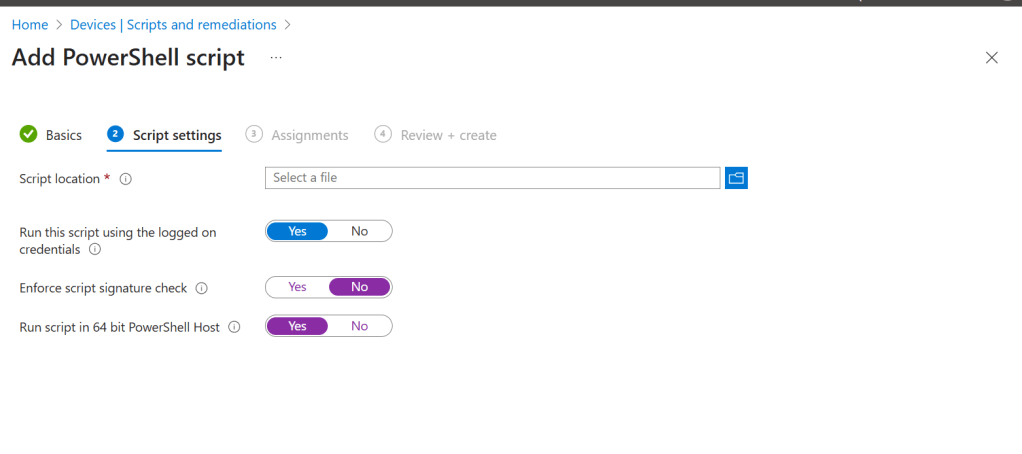
Because this script is not signed by a trusted publisher if you select “Yes” in that option it won’t work.
Also, if your host is 64 bits you must mark that option to “Yes”
The script is as simple as below:
Rename-Printer -Name “OldPrinterName1” -NewName “NewPrinterName1”
Rename-Printer -Name “OldPrinterName2” -NewName “NewPrinterName2”
This will change the name of the printers that are already mapped on a user’s device.

 Modern Workplace Help
Leave a comment